# How to play Quake 3 Arena over Meshnet
## Introduction
[Quake 3 Arena](https://en.wikipedia.org/wiki/Quake_III_Arena) is a classic first-person shooter game that has been a favorite among gamers for decades. While the game lacks a dedicated single-player storyline, it more than makes up for it with its engaging multiplayer experience.
In Quake 3 Arena, you can enjoy online multiplayer servers or create your own local server with just a few clicks. The server creation menu allows you to customize many aspects of the game, thereby making the game more interesting. However, what is the point of hosting a local server if none of your friends can join it?
By adding Meshnet to the equation, you can create a secure virtual network that connects devices located all over the world. Meshnet allows you to reap most of the benefits of [local area network](https://nordvpn.com/blog/what-is-lan/) (LAN) gaming, even when all of the participants are using different networks.
This article will showcase how you can use NordVPN’s Meshnet feature to play Quake 3 Arena on Windows with your friends.
## Start your Quake 3 Arena server
To create your personal Quake 3 Arena server:
1. Open **Quake 3 Arena**.
2. Select **Multiplayer** and click **Create**.
3. Choose your preferred map as well as the game mode and click **Next**.
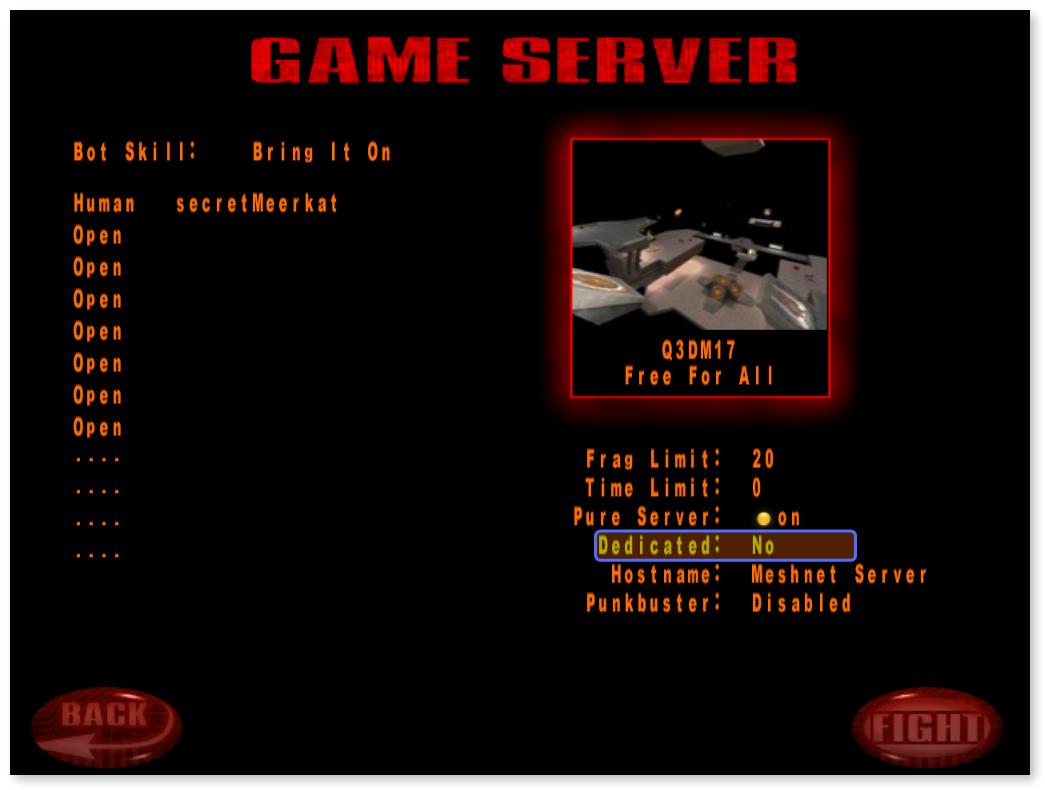
4. Configure the server’s settings to your liking.
5. Set the **Dedicated** option to **No**.
6. Click **Fight**.
Once the server loads in a few seconds, other people can start joining in.
## Invite your friends
After loading into the selected map, your friends can join the server to participate in the game. To connect to the server:
1. Copy the Meshnet IP address of the server computer from the NordVPN app by clicking it.
2. Open **Quake 3 Arena**.
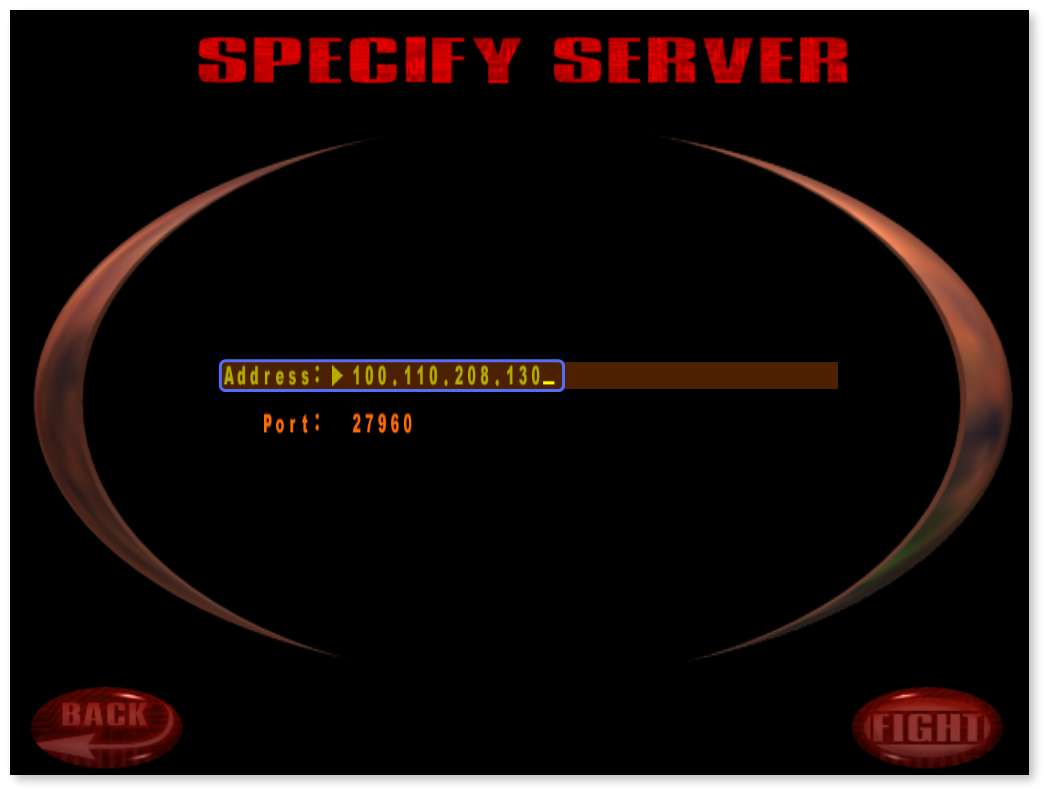
3. Select **Multiplayer** and click **Specify**.
4. Paste the copied Meshet IP to the **Address** field.
5. Click **Fight**.
Alternatively, you can open the console by pressing the **\~** (tilde) key on your keyboard and then typing in the following command, replacing `` with the copied Meshnet IP address.
```
connect
```
**Example**
```
connect 100.110.208.130
```
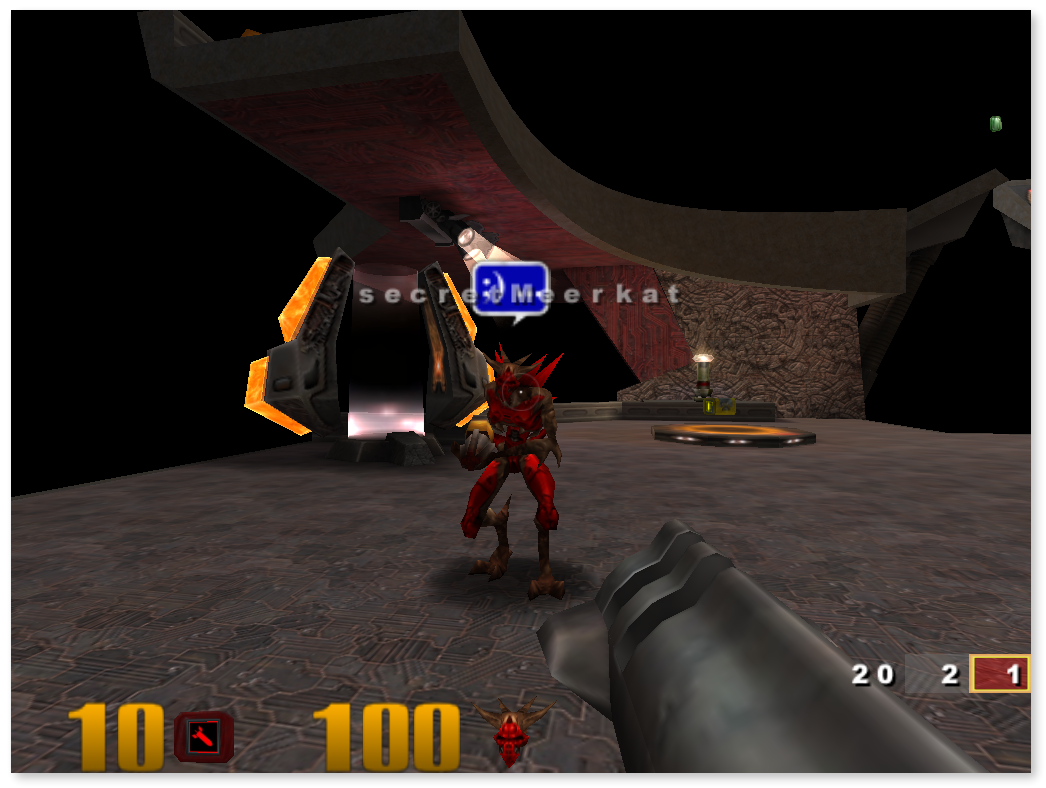
You will shortly be connected to the server and have the opportunity to enjoy a private LAN game of Quake 3 Arena through Meshnet.