# How to access remote systems over Meshnet using SSH

## Introduction <a href="#introduction" id="introduction"></a>

With the advancement of technology, remote system management has become crucial in today's digital landscape. [Secure Shell](https://en.wikipedia.org/wiki/Secure_Shell) (SSH) is a popular choice when it comes to accessing remote servers, desktop computers, and devices like Raspberry Pi due to its flexibility and efficiency. While the client-server architecture of SSH makes communication between devices secure, it is not completely risk free, especially if you rely on password authentication.

Used in conjunction with [Meshnet](https://nordvpn.com/meshnet/), the SSH method can be as safe as physically accessing the server. Not only does Meshnet save time and travel costs, allowing you to connect directly to your remote device, but it also protects your SSH connection. Using an SSH key pair to authenticate your identity provides an additional layer of security by reducing the risk of password-based attacks.

This article explains what an SSH connection is, how it can be established via Meshnet, and how you can generate an SSH key pair to additionally protect the connection.

## What is SSH? <a href="#what-is-ssh" id="what-is-ssh"></a>

SSH is a command-line access method that lets you log in to another computer, execute commands, and transfer files between computers.

Being a lightweight protocol, SSH is typically used for remote server administration and is especially prevalent in the Linux infrastructure.

## Using SSH on Linux, Windows, and macOS <a href="#using-ssh-on-linux-windows-and-macos" id="using-ssh-on-linux-windows-and-macos"></a>

While SSH is mostly used for controlling Linux machines, both Windows and macOS can also be accessed using this method. All three operating systems employ an open-source implementation of SSH tools called [OpenSSH server](https://www.ssh.com/academy/ssh/openssh).

### Enable SSH access <a href="#enable-ssh-access" id="enable-ssh-access"></a>

To make your device accessible via SSH, you need to install and enable the OpenSSH server software.

{% tabs %}
{% tab title="Linux" %}
{% hint style="info" %}
**Note**

In this guide, Ubuntu 22.04.1 LTS serves as the example for the provided instructions.
{% endhint %}

To install SSH server on Linux:

1. Open the terminal and install the SSH server by running this command:

   &#x20;

   ```bash
   sudo apt update && sudo apt install openssh-server
   ```

2. Once the installation is complete, confirm that the SSH service is running by checking its status. The output should tell you that the service is active. Run the following command:<br>

   ```bash
   sudo systemctl status ssh
   ```

   &#x20;

3. To prevent the firewall from blocking your remote connection, open the SSH port by typing:

   &#x20;

   ```bash
   sudo ufw allow ssh
   ```

You can now connect to your Linux system via SSH from any remote device over Meshnet.
{% endtab %}

{% tab title="Windows" %}
To enable SSH on Windows, complete the following steps:

1. Open **Settings**, select **Apps**, and click **Optional features**.

2. Click **View features**.

3. Type in `OpenSSH`, select the **OpenSSH Server** checkbox, and click **Next**.<br>

   ![OpenSSH Server feature](https://3559400189-files.gitbook.io/~/files/v0/b/gitbook-x-prod.appspot.com/o/spaces%2F0cTezbT2vN0lurEio8Z5%2Fuploads%2FrblYVtoQSMNL5RiqD4Yt%2Fwin_ssh_install.png?alt=media\&token=3b8bed24-3000-460a-ac0f-224f66fa695d)

   &#x20;

4. Click **Install**.

5. Once the installation is finished, open PowerShell as an administrator by pressing the **Windows**![](https://3559400189-files.gitbook.io/~/files/v0/b/gitbook-x-prod.appspot.com/o/spaces%2F0cTezbT2vN0lurEio8Z5%2Fuploads%2FOtP5XWC64gJfapJxZksb%2Fwindows_start_11.svg?alt=media\&token=ba30bb06-e18d-4b98-890f-1a16c24b24db) key + **R**, typing in `powershell`, and pressing **Ctrl** + **Shift** + **Enter**.

6. Run the following command to start the OpenSSH server process:

   &#x20;

   ```powershell
   Start-Service sshd
   ```

7. Ensure the SSH service is enabled each time you reboot your computer using this command:<br>

   ```powershell
   Set-Service -Name sshd -StartupType 'Automatic'
   ```

You can now connect to your Windows machine via SSH from any remote device over Meshnet.
{% endtab %}

{% tab title="macOS" %}
To connect to your Mac using SSH, you need to enable remote login in your system settings.

1. Choose the Apple menu<img src="https://3559400189-files.gitbook.io/~/files/v0/b/gitbook-x-prod.appspot.com/o/spaces%2F0cTezbT2vN0lurEio8Z5%2Fuploads%2FTUtVawqwbuBLbzzeh5Eb%2Fapple_logo.svg?alt=media&#x26;token=65e7732e-4fa2-4459-8a70-6d1ed4b10dae" alt="" data-size="line"> > **System settings** > **General**, and click **Sharing**.

2. Enable the **Remote login** option.<br>

   <div align="left"><figure><img src="https://3559400189-files.gitbook.io/~/files/v0/b/gitbook-x-prod.appspot.com/o/spaces%2F0cTezbT2vN0lurEio8Z5%2Fuploads%2F0JsA8LQoeAXXWYzL7qtp%2Fmac_remote_login.png?alt=media&#x26;token=f46ba21d-dbab-44e2-891c-8a0bbcc51737" alt="Remote login option"><figcaption></figcaption></figure></div>

3. If needed, select the **Allow full disk access for remote users** checkbox on the right.

4. Optionally, specify which users can log in.

You can now connect to your Mac via SSH from any remote device over Meshnet.
{% endtab %}
{% endtabs %}

### Connect to your remote computer through SSH <a href="#connect-to-your-remote-computer" id="connect-to-your-remote-computer"></a>

Before attempting to connect, ensure that you have the correct username for the remote computer account.

{% hint style="success" %}
**Tip**

To view your username, run the following command in **Command Prompt** (on Windows) or **Terminal** (on Linux or macOS):

<pre><code><strong>whoami
</strong></code></pre>

{% endhint %}

{% tabs %}
{% tab title="Windows, macOS, and Linux" %}
To access your remote system via SSH from a desktop device:

1. Open **Command Prompt** (on Windows) or **Terminal** (on Linux or macOS).

2. Enter the following command, where `<username>` is your remote PC account name and `<server>` is the Nord name or Meshnet IP of the computer you want to access:

   &#x20;

   ```bash
   ssh <username>@<server>
   ```

   \
   **Example**

   ```bash
   ssh ubuntu@100.105.90.201
   ```

   or

   ```bash
   ssh ubuntu@secret.meerkat-altai.nord
   ```

3. The first time you connect, you will be asked to verify the authenticity of the server. This message is displayed to make sure you’re connecting to the correct remote server. Type `yes` to continue, as shown:<br>

   <div align="left"><figure><img src="https://3559400189-files.gitbook.io/~/files/v0/b/gitbook-x-prod.appspot.com/o/spaces%2F0cTezbT2vN0lurEio8Z5%2Fuploads%2FZ2djmX7B8BBcnpB5dMwB%2Fwin_ssh_finger.png?alt=media&#x26;token=9d8984e1-772f-4b81-9af5-d413f0f8de4f" alt="SSH key fingerprint confirmation"><figcaption></figcaption></figure></div>

4. Enter the password for the specified username.

You should now be connected to your remote device using SSH.
{% endtab %}

{% tab title="Android" %}
To access your remote system via SSH from an Android device:

1. Download and install the [ConnectBot](https://play.google.com/store/apps/details?id=org.connectbot) SSH client from the Google Play Store.
2. Open **ConnectBot**.
3. Tap the plus (+) button to add a host device.
4. Under **Protocol**, enter the following information, where `<username>` is your remote PC account name and `<server>` is the Nord name or Meshnet IP of the computer you want to access.<br>

   ```bash
   <username>@<server>
   ```

   \
   **Example**

   ![Remote device's username and hostname](https://3559400189-files.gitbook.io/~/files/v0/b/gitbook-x-prod.appspot.com/o/spaces%2F0cTezbT2vN0lurEio8Z5%2Fuploads%2FrB1XwfPBVSDZKeoPbZPh%2Fandroid_ssh_details.png?alt=media\&token=c4a43946-fab9-4eee-8739-9c0664a0e08d)

   &#x20;
5. Tap the plus (+) button in the upper-right corner.
6. Tap the newly added host device to initiate a connection.
7. Enter the password for the specified username.

You should now be connected to your remote device using SSH.

![Terminal of the remote device](https://3559400189-files.gitbook.io/~/files/v0/b/gitbook-x-prod.appspot.com/o/spaces%2F0cTezbT2vN0lurEio8Z5%2Fuploads%2FspodeH5Dlbd6suHSlA9w%2Fimage.png?alt=media\&token=075ec3e6-76a9-40b7-9ded-11b33774bada)
{% endtab %}

{% tab title="iOS" %}
To access your remote system via SSH from an iOS device:

1. Download and install the [WebSSH](https://apps.apple.com/us/app/webssh-sysadmin-tools/id497714887) application from the Apple App Store.
2. Open **WebSSH**.
3. To add a new host device, tap the empty area of the main screen or the plus button in the upper-right corner.
4. Specify the following information:
   * In the **Host** field, enter the Nord name or Meshnet IP of the remote PC.
   * In the **User** field, enter the account name of the remote computer.
   * In the **Password** field, enter the authentication password of the user account.\
     \
     ![Remote device's details for SSH connection](https://3559400189-files.gitbook.io/~/files/v0/b/gitbook-x-prod.appspot.com/o/spaces%2F0cTezbT2vN0lurEio8Z5%2Fuploads%2FmfsnlzaTJiZkaThksIwa%2Fios_ssh_details.png?alt=media\&token=6cbc3d69-9ec1-45af-9187-22089682f094)

     &#x20;
5. Tap the check mark button in the upper-right corner.
6. From the main application screen, tap the newly added device to initiate a connection.
7. Tap **Continue** to confirm the host key fingerprint.\
   \
   ![SSH fingerprint confirmation](https://3559400189-files.gitbook.io/~/files/v0/b/gitbook-x-prod.appspot.com/o/spaces%2F0cTezbT2vN0lurEio8Z5%2Fuploads%2FDxx9REzRCDqRu68yAphI%2Fios_ssh_finger.png?alt=media\&token=022c17f3-e75a-4c8d-a6dd-50eafa1c8b14)

You should now be connected to your remote device using SSH.

<div align="left"><figure><img src="https://3559400189-files.gitbook.io/~/files/v0/b/gitbook-x-prod.appspot.com/o/spaces%2F0cTezbT2vN0lurEio8Z5%2Fuploads%2FMu23D6YGWvu1Jkzzpnze%2Fios_ssh.png?alt=media&#x26;token=643d9330-a394-4f31-af78-e3414aee8b47" alt="Terminal of the remote device"><figcaption></figcaption></figure></div>
{% endtab %}
{% endtabs %}

## Configuring SSH keys <a href="#configuring-ssh-keys" id="configuring-ssh-keys"></a>

An [SSH key](https://www.ssh.com/academy/ssh-keys) is a cryptographic key that is used for user authentication while establishing an SSH connection. It increases the security of SSH connections and allows for efficient automation, as it doesn't require human intervention for authentication.

### Generate an SSH key <a href="#generate-an-ssh-key" id="generate-an-ssh-key"></a>

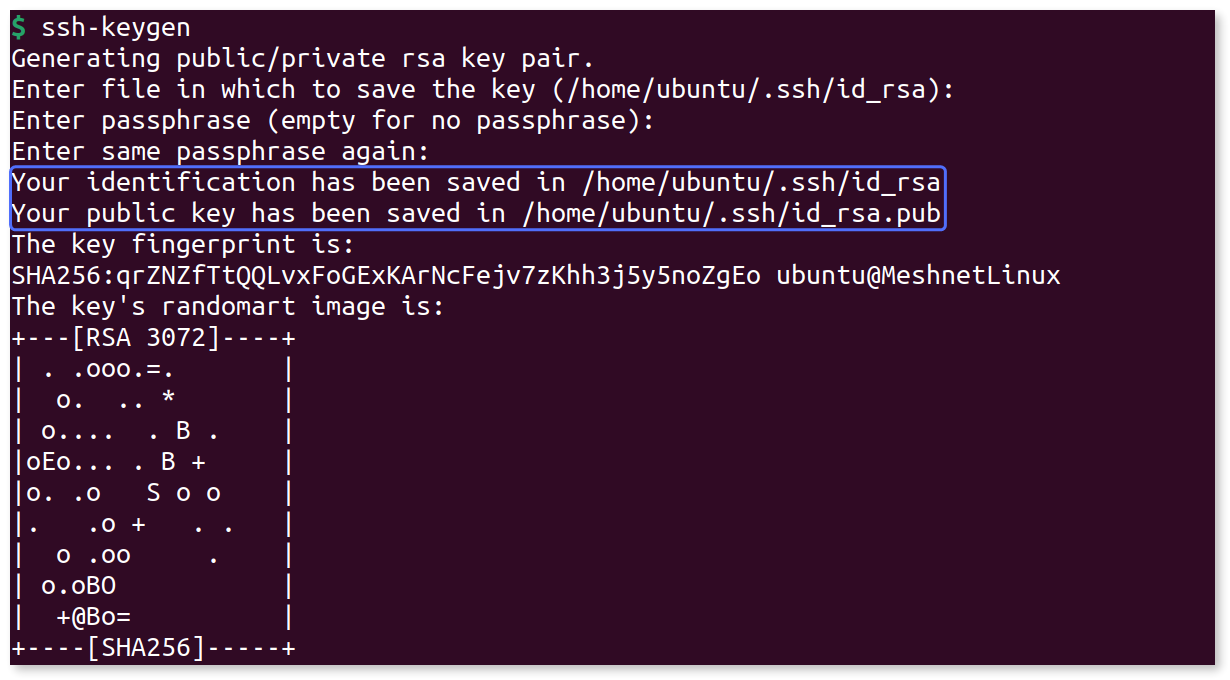
To use key-based authentication, you first need to generate a key pair on the host device.

1. Run the following command in **Command Prompt** (on Windows) or **Terminal** (on Linux or macOS):

   &#x20;

   ```bash
   ssh-keygen
   ```

2. Press **Enter** to keep the default file location.

3. For additional security, you can choose a custom password. Otherwise, press **Enter**.

A pair of keys (private and public) will be generated with the same `id_rsa` name. However, the public key can be distinguished from the private key by its file extension, which is `.pub`.

<div align="left"><figure><img src="https://3559400189-files.gitbook.io/~/files/v0/b/gitbook-x-prod.appspot.com/o/spaces%2F0cTezbT2vN0lurEio8Z5%2Fuploads%2FKgyKAHmUpsck71ErvgJs%2Fssh_key_gen.png?alt=media&#x26;token=d44acb72-eb46-45e3-aa86-7d1be9ec5a6b" alt="SSH keys generated"><figcaption></figcaption></figure></div>

### Copy your public SSH key to a client device <a href="#copy-your-public-key-to-a-client-device" id="copy-your-public-key-to-a-client-device"></a>

To use SSH keys for authentication, you need to copy the public key of the host device to the client device. When establishing an SSH connection, the public key is matched with the private key on the host device to authorize the connection.

{% tabs %}
{% tab title="Windows" %}
To exchange the SSH public key, follow these steps on your host device:

1. Open **PowerShell**.

2. Run the following command, where `<username>` is the username of the client device's account and `<server>` is the client device’s Nord name or Meshnet IP:<br>

   <pre class="language-powershell" data-overflow="wrap"><code class="lang-powershell">type $env:USERPROFILE\.ssh\id_rsa.pub | ssh &#x3C;username>@&#x3C;server> "cat >> .ssh/authorized_keys"
   </code></pre>

   \
   **Example**

   <pre class="language-powershell" data-overflow="wrap"><code class="lang-powershell">type $env:USERPROFILE\.ssh\id_rsa.pub | ssh ubuntu@secret.meerkat-altai.nord "cat >> .ssh/authorized_keys"
   </code></pre>

3. If prompted, type in yes and press **Enter** to confirm the key fingerprint.<br>

   <div align="left"><figure><img src="https://3559400189-files.gitbook.io/~/files/v0/b/gitbook-x-prod.appspot.com/o/spaces%2F0cTezbT2vN0lurEio8Z5%2Fuploads%2FZ2djmX7B8BBcnpB5dMwB%2Fwin_ssh_finger.png?alt=media&#x26;token=9d8984e1-772f-4b81-9af5-d413f0f8de4f" alt="SSH key fingerprint confirmation"><figcaption></figcaption></figure></div>

4. Enter the client device’s account password and press **Enter**.
   {% endtab %}

{% tab title="Linux and macOS" %}
To exchange the SSH public key, follow these steps on your host device:

1. Open **Terminal**.

2. Run the following command, where `<username>` is the username of the client device's account and `<server>` is the client device’s Nord name or Meshnet IP:

   &#x20;

   ```bash
   ssh-copy-id <username>@<server>
   ```

   \
   **Example**

   ```bash
   ssh-copy-id ubuntu@secret.meerkat-altai.nord
   ```

3. If prompted, type in `yes` and press **Enter** to confirm the key fingerprint.<br>

   <div align="left"><figure><img src="https://3559400189-files.gitbook.io/~/files/v0/b/gitbook-x-prod.appspot.com/o/spaces%2F0cTezbT2vN0lurEio8Z5%2Fuploads%2FfzB7STOF1TbbmV6rHD8U%2Fssh_key_fingerprint.png?alt=media&#x26;token=ddf5f584-24cc-4f3d-bf33-e3641a50ec4a" alt="SSH key fingerprint confirmation"><figcaption></figcaption></figure></div>

4. Enter the client device’s account password and press **Enter**.

You will see a message that the key has been added.

<div align="left"><figure><img src="https://3559400189-files.gitbook.io/~/files/v0/b/gitbook-x-prod.appspot.com/o/spaces%2F0cTezbT2vN0lurEio8Z5%2Fuploads%2FhAF14l1eSwp5XdGcbtuS%2Fssh_key_added.png?alt=media&#x26;token=958355d6-6b10-4ee3-9feb-698de65536fd" alt="SSH key added"><figcaption></figcaption></figure></div>
{% endtab %}
{% endtabs %}

Once the SSH key exchange is complete, you can use the same format to establish an SSH connection to the other device:

```bash
ssh <username>@<server>
```

However, you will not be prompted to enter a password unless you choose a passphrase while generating the SSH key. And now you can securely access your remote device via SSH over Meshnet.