> For the complete documentation index, see [llms.txt](https://meshnet.nordvpn.com/llms.txt). Markdown versions of documentation pages are available by appending `.md` to page URLs; this page is available as [Markdown](https://meshnet.nordvpn.com/how-to/remote-access/openclaw-ai-assistant.md).
# How to set up OpenClaw AI assistant with Meshnet
Learn how to configure a personal AI assistant using OpenClaw and remotely access it over Meshnet.
## Introduction
[Artificial intelligence](https://nordvpn.com/cybersecurity/glossary/artificial-intelligence/) (AI) has made significant progress in recent years, with [AI agents](https://nordvpn.com/cybersecurity/glossary/intelligent-agent/) increasingly integrated into our daily lives. These agents automate tasks, manage communications, and execute complex tasks, making workflows more efficient. As AI technology advances, people are relying more heavily on AI agents to boost productivity.
[OpenClaw](https://openclaw.ai/) is an [open-source](https://github.com/openclaw/openclaw) AI assistant that enables users to automate digital tasks and interact with various applications. With its ability to run on most machines, remember context, and autonomously handle real tasks via different messaging channels, OpenClaw offers a unique solution for people looking to maximize AI power.
With OpenClaw and [Meshnet](https://nordvpn.com/meshnet/) combined, you can access and control your instance remotely, no matter where you are. Meshnet creates a virtual network that connects devices worldwide, mimicking a [local area network](https://nordvpn.com/blog/what-is-lan/) (LAN). The use of the [NordLynx protocol](https://nordvpn.com/blog/nordlynx-protocol-wireguard/) in Meshnet ensures that the communication between devices matches the security standards of a [VPN](https://nordvpn.com/) connection.
This article demonstrates how you can set up your OpenClaw instance and use it over Meshnet.
## Before you begin
If you’re using a Linux device, you can proceed directly to the [next section](#configure-the-openclaw-ai-assistant).
As for Windows devices, it is highly recommended to install OpenClaw using [Windows Subsystem for Linux](https://learn.microsoft.com/en-us/windows/wsl/) (WSL). WSL installs a light-weight version of a chosen Linux distribution. This approach ensures that the packages required for running OpenClaw can be installed and managed as the creator intended.
Install WSL
To install WSL on your Windows machine:
1. Open **PowerShell** as an administrator.
2. Run the command below to install the recommended version of Ubuntu via WSL.
```powershell
wsl.exe --install
```
3. Wait until the installation process is finished.
4. When requested, create the username and password for your Ubuntu user account.
5. Fetch and install all available updates for your system by running the following command:
```bash
sudo apt update && sudo apt upgrade -y
```
If required, enter the Ubuntu account password you just created and press **Enter**.
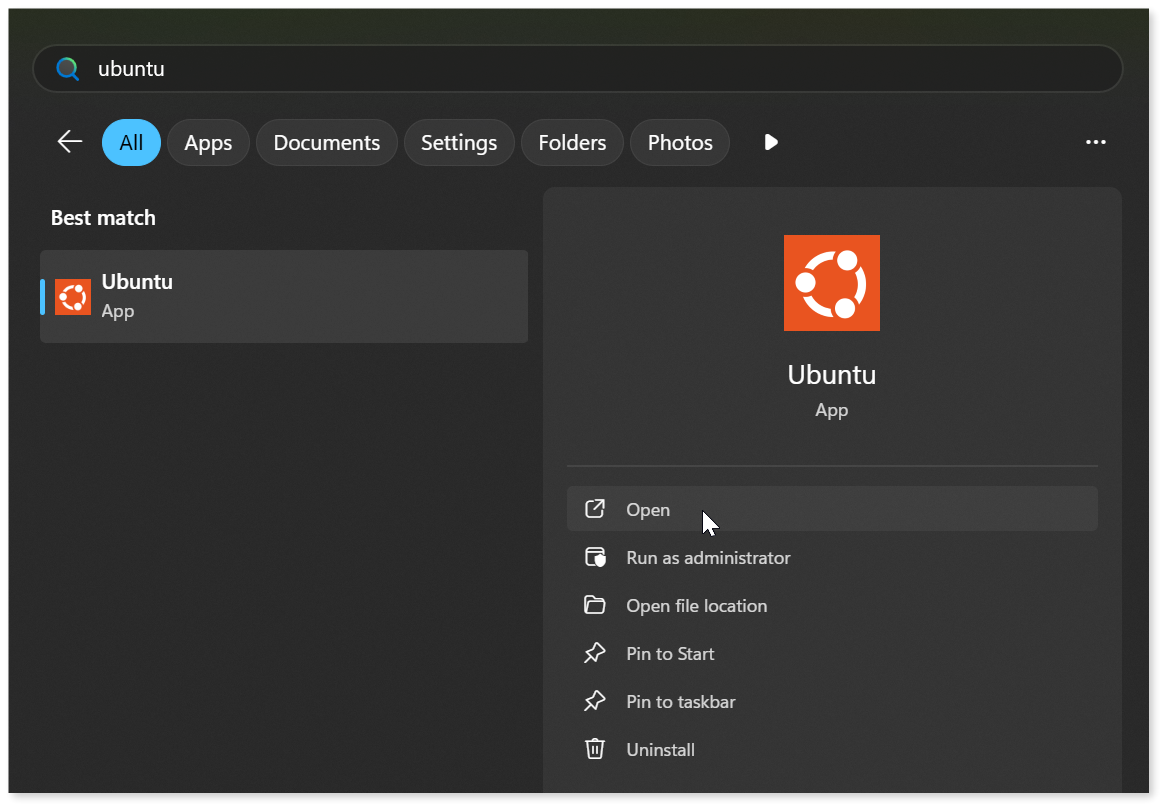
Your WSL2 instance is now installed and ready for use. To access it, launch **Ubuntu** from your Windows start menu.
All further instructions should be performed inside the WSL terminal.
{% hint style="info" %}
**Note**
When installing WSL for the first time, you may be required to restart your computer.
{% endhint %}
## Configure the OpenClaw AI assistant
The most convenient way to begin with OpenClaw is to use its installation script. It installs software required to run OpenClaw and guides you through the onboarding procedure.
### Install OpenClaw
In **Terminal**, run the following command to download and run the OpenClaw installation script.
{% code overflow="wrap" %}
```bash
curl -fsSL https://openclaw.ai/install.sh | bash
```
{% endcode %}
The script will check your system and install all of the prerequisites needed to run OpenClaw.
### Begin OpenClaw onboarding
Once the installation process successfully finishes, it will begin the OpenClaw onboarding procedure.
1. Read through the security warning, choose the **Yes** option using the arrow keys, and press **Enter**.
2. Select the **QuickStart** onboarding mode.
### Choose OpenClaw settings
1. Pick your preferred AI provider, authenticate using one of the available methods, and select the default AI model your assistant will use.
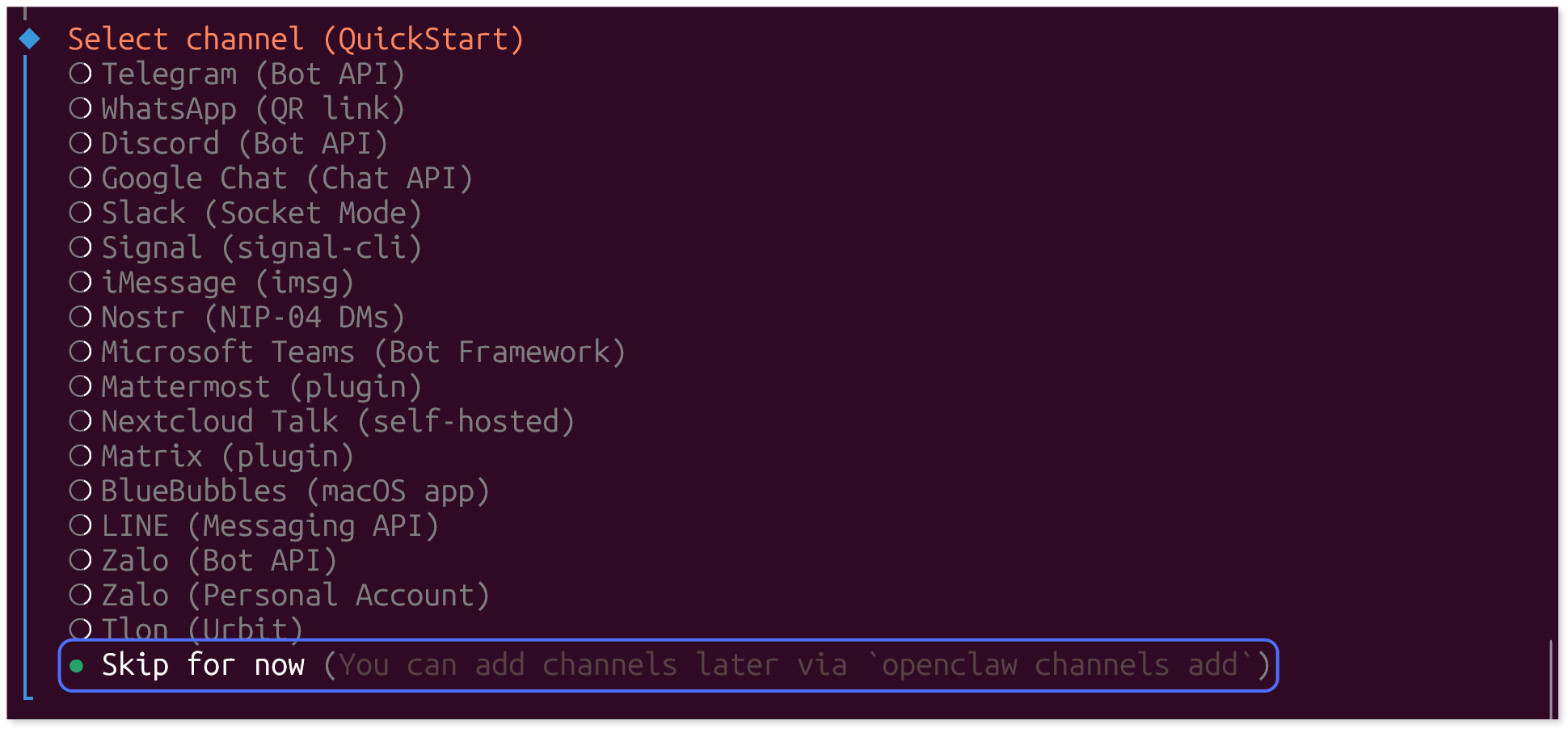
2. Under **Select channel (QuickStart)** choose **Skip for now**.
3. Choose whether you want to install any assistant skills right now. Otherwise, select **No**.
4. Enter any of the shown API key options or choose **No**.
5. Under **Enable hooks?** select **Skip for now**. This is an advanced feature that can be configured later.
6. Lastly, choose **Do this later** and pick **Yes** to install the shell completion script.
7. Update your path environment variable to accommodate OpenClaw with this command:
```bash
export PATH="$(npm prefix -g)/bin:$PATH" && source ~/.bashrc
```
The onboarding process is now finished.
### Allow local and Meshnet connections
By default, OpenClaw is bound to the `loopback` network interface, meaning that it accepts connections only from the device on which it is installed. You will need to modify the OpenClaw configuration file to permit incoming connections from the local network and via Meshnet.
1. Run the following command to open the OpenClaw configuration file using the Nano text editor:
nano ~/.openclaw/openclaw.json
2. Locate the `"bind"` field and change its value from `"loopback"` to `"lan"` as shown:
```json
"bind": "lan",
```
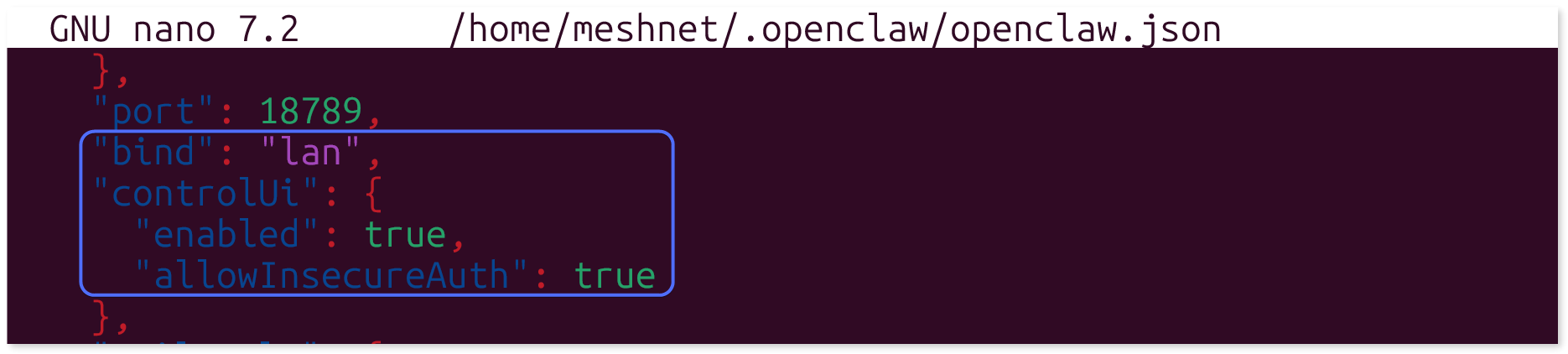
3. Enable remote HTTP-only connections, which will be used for Meshnet access, by adding the following block to the file, under the `"bind": "lan",` line:
\
The modified area of the file should look as such:
4. Press **Ctrl** + **X**, **Y**, and **Enter** to save changes and exit.
5. Restart the OpenClaw gateway to apply the changes with the command below:
openclaw gateway restart
If the changes to the configuration file were done correctly, the OpenClaw gateway should restart successfully and your AI assistant will be able to accept connections from the LAN and over Meshnet.
## Set up Meshnet
With the configuration changes applied, you can start setting up Meshnet.
### Install NordVPN
Follow these steps to install NordVPN on your device:
1. Download and install the NordVPN Linux client by running the command below.
sh <(wget -qO - https://downloads.nordcdn.com/apps/linux/install.sh)
2. Log in to your NordVPN account.
### Log in to NordVPN
You can log in to your NordVPN account without the use of a graphical user interface (GUI) in two ways:
* By running the `nordvpn login` command with the `--token` flag
* By running the `nordvpn login` command with the `--callback` flag
Instructions for both methods are outlined below.
Log in using a token
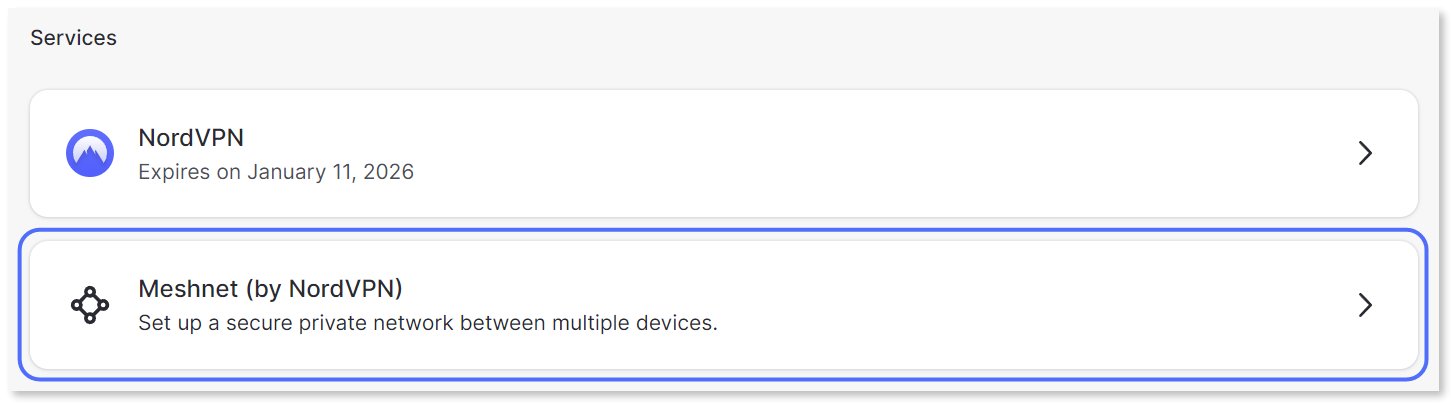
1. On any device, log in to your [Nord Account](https://my.ndaccount.com/) dashboard and select the **Meshnet (by NordVPN)** card.
2. Under **Advanced settings**, select **Get access token**.
3. Enter the verification code sent to your email address.
4. Under **Access token**, click **Generate new token**.
5. In the dialog that appears, choose either a token that expires in 30 days or one that never expires, and then select **Generate token**.
6. Select **Copy and close**.
7. In your Proxmox shell, run the `nordvpn login --token ` command, replacing `` with the copied token.\
\
**Example**
You should now see a welcome message.
Log in using a URL
1. Run the `nordvpn login` command.
2. Open the provided link in your browser on any device.
3. Complete the login procedure.
4. Right-click the **Continue** button and select **Copy link address**.
5. Run the `nordvpn login --callback ""` command, replacing `` with the previously copied link address.\
\
**Example**
You should now see a welcome message.
{% hint style="success" %}
**Tip**
To preserve your token when logging out of the NordVPN app, use the `nordvpn logout --persist-token` command. Otherwise, your token will be revoked.
{% endhint %}
### Enable Meshnet
Upon logging in, [enable Meshnet](/getting-started/how-to-start-using-meshnet/using-meshnet-on-linux.md#enable-meshnet-on-linux) with this command:
{% code overflow="wrap" %}
```bash
nordvpn set meshnet on
```
{% endcode %}
To view the Nord name and Meshnet IP address of your instance, enter the following command:
{% code overflow="wrap" %}
```bash
nordvpn meshnet peer list
```
{% endcode %}
## Access OpenClaw over Meshnet
With Meshnet and OpenClaw setups finalized, you can connect to your OpenClaw instance using Meshnet.
1. Copy the Nord name or the Meshnet IP address of OpenClaw machine from the NordVPN application.
2. Open your internet browser.
3. In the URL bar, paste the copied Nord name or Meshnet IP address followed by `:18789/` and press **Enter**.\
\
**Example**\
`secret.meerkat-fuji.nord:18789/`
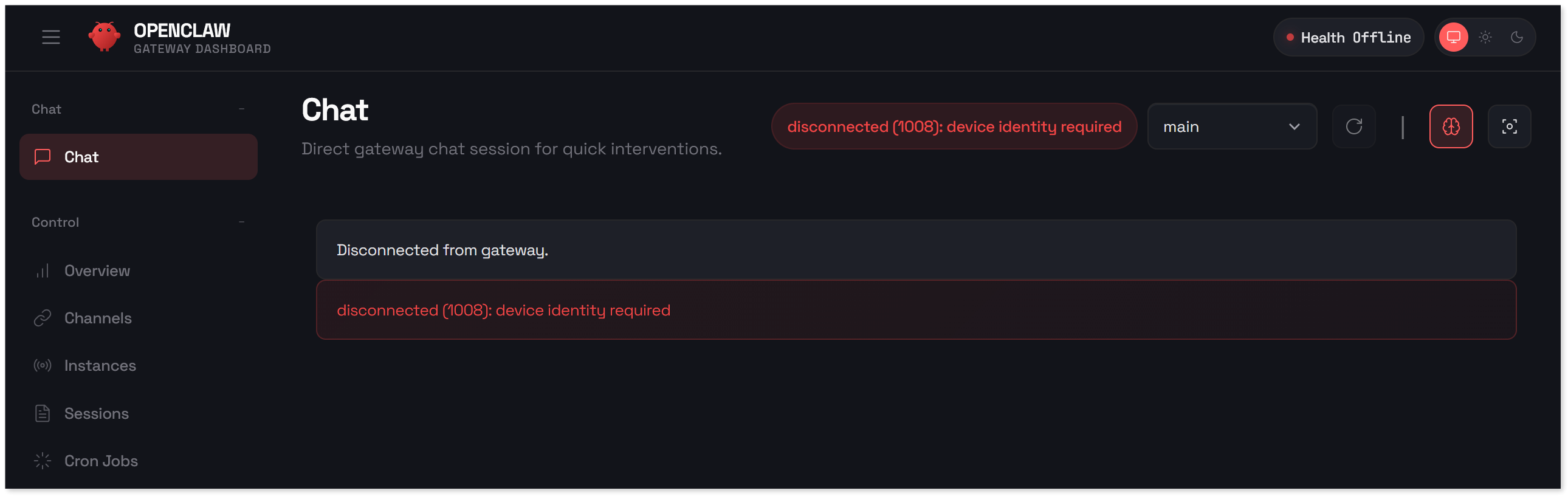
Once the page loads, you will be greeted with an error message. This is expected, as OpenClaw requires authentication before granting access to the dashboard.
### Get the authentication token
The default authentication method for OpenClaw is using a token. The token must be fetched from the device on which OpenClaw is installed. You can choose from two different methods to get it.
{% tabs %}
{% tab title="Method 1: using OpenClaw CLI" %}
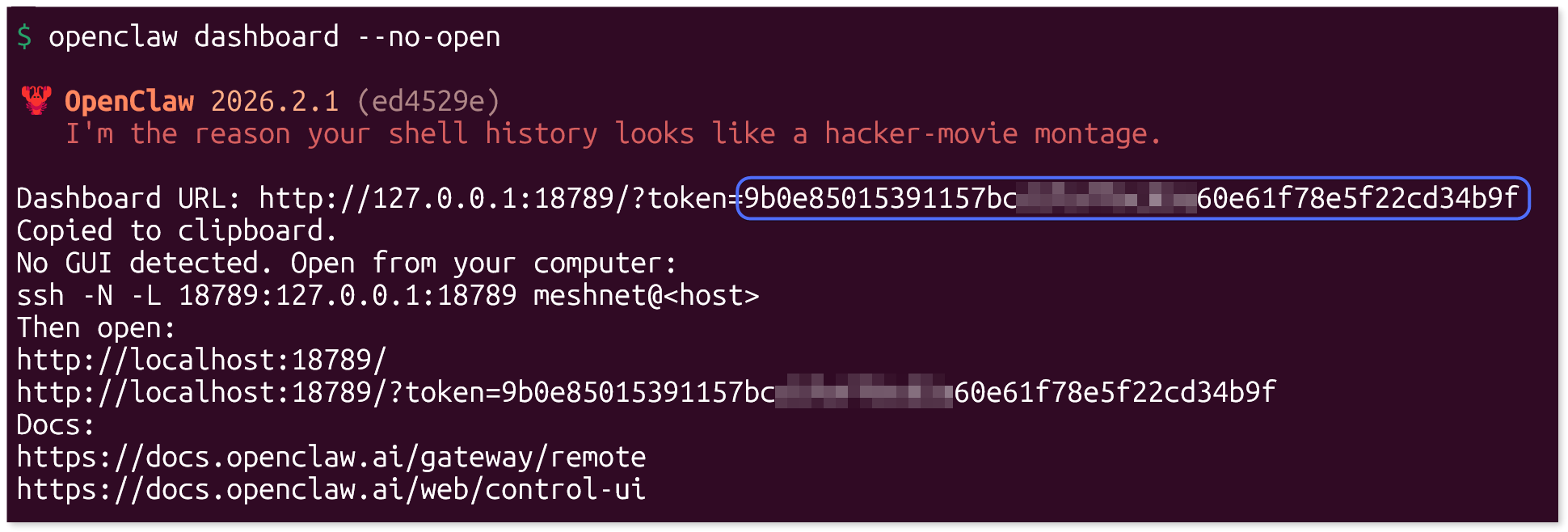
1. Run the following command to display the OpenClaw dashboard details:
openclaw dashboard --no-open
2. The `Dashboard URL` address contains the login token for your OpenClaw dashboard. Copy all of the symbols following the `?token=` part of the URL to your clipboard.
{% endtab %}
{% tab title="Method 2: using jq tool" %}
You can use [jq](https://github.com/jqlang/jq), a command-line JSON processor, to parse the token value directly from the OpenClaw configuration JSON file.
1. Install jq with this command:
sudo apt install jq -y
2. Use the command below to get the authentication token:
{% hint style="info" %}
**Note**
The command may work if the layout of your configuration file is different. In such a case, refer to the first method.
{% endhint %}
{% endtab %}
{% endtabs %}
### Authenticate the OpenClaw dashboard
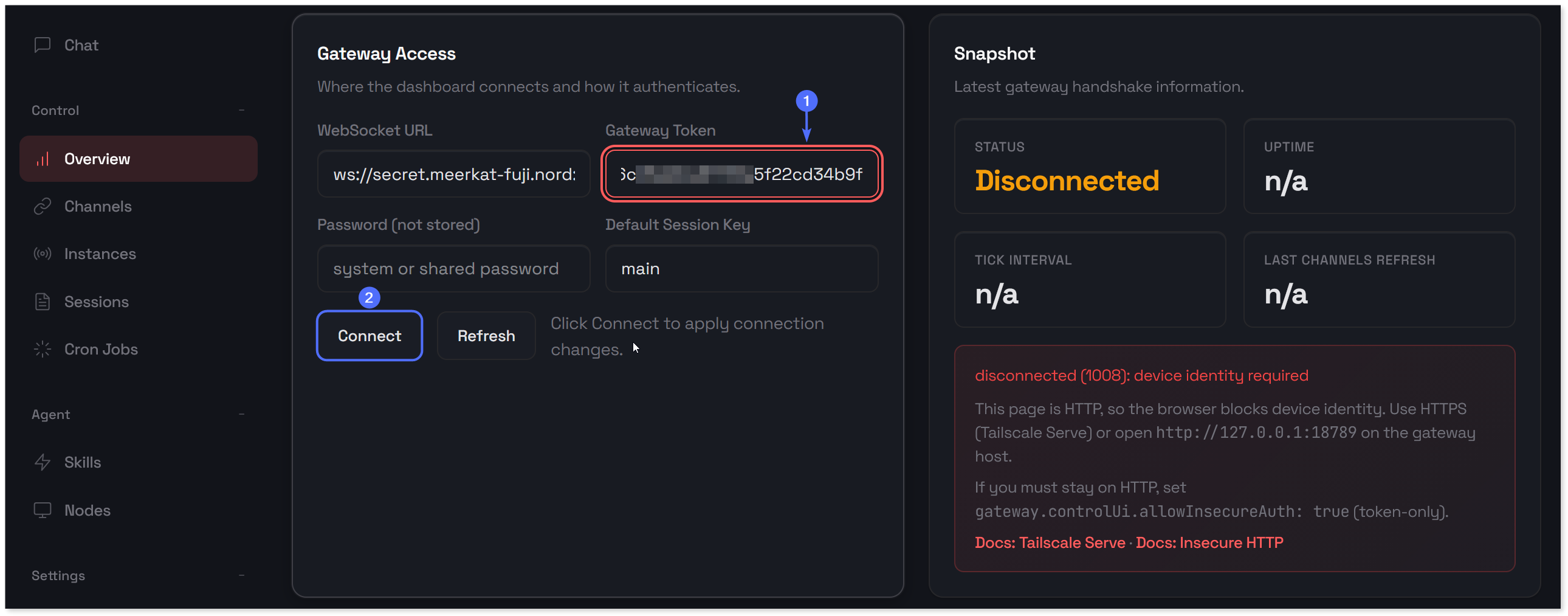
1. Open your OpenClaw gateway dashboard.
2. From the menu on the left, select **Overview**.
3. Under **Gateway access**, locate the **Gateway token** field.
4. Paste in the authentication token copied earlier and click **Connect**.
You should see the **Status** on the right change to “Connected”.
### Chat to your AI assistant
Lastly, you can finalize setting up your OpenClaw AI assistant and begin chatting with it.
1. In the OpenClaw dashboard, from the menu on the left, select **Chat**.
2. Send any message to prompt the setup procedure.
3. Answer the questions provided by the AI agent to configure its properties.
That’s it. Your personal OpenClaw AI assistant is now ready to be used over a secure Meshnet connection from anywhere in the world. You can further improve it by setting up any of the various [integrations available for OpenClaw](https://openclaw.ai/integrations).
---
# Agent Instructions
This documentation is published with GitBook. GitBook is the documentation platform designed so that both humans and AI agents can read, navigate, and reason over technical content effectively. Learn more at gitbook.com.
## Querying This Documentation
If you need additional information that is not directly available in this page, you can query the documentation by asking a question.
Perform an HTTP GET request on the following URL with the `ask` and `goal` query parameters:
```
GET https://meshnet.nordvpn.com/how-to/remote-access/openclaw-ai-assistant.md?ask=&goal=
```
`ask` is the immediate question: it should be specific, self-contained, and written in natural language.
`goal` is what the user is ultimately trying to achieve, the reason they need the answer. Sharing it helps GitBook give you a better, more relevant answer. A goal is most helpful when it describes the outcome the user wants rather than restating the question. For example, with `ask=how do I create an API token`, a goal like `automate deployments from our CI pipeline` lets GitBook tailor the answer to that use case.
The response will contain a direct answer to the question and relevant excerpts and sources from the documentation.
Use this mechanism when the answer is not explicitly present in the current page, you need clarification or additional context, or you want to retrieve related documentation sections.